Windows
There are multiple ways to connect to Elja from Windows with visualization support. The following guide covers both traditional methods using PuTTY and XLaunch (VcXsrv), as well as newer approaches using Windows 10/11's built-in SSH client.
Connecting with PowerShell (Windows 10 and later)
Windows 10 and later versions include a built-in OpenSSH client, allowing you to connect to servers using PowerShell. For visualization support, you'll need to combine this with an X server.
Steps for basic connection:
-
Ensure OpenSSH Client is installed: Open Settings > Apps > Optional features. If "OpenSSH Client" is not listed, click "Add a feature" and select "OpenSSH Client" to install it.
-
Open PowerShell: Search for "PowerShell" in the Windows start menu and open the application.
-
Connect to Elja with X11 forwarding: Use the following command, replacing
<username>with your username on the Elja cluster:
ssh -X <username>@elja.hi.is
The -X flag enables X11 forwarding for visualization.
- Authentication: If this is your first time connecting, you may be prompted to confirm the server's authenticity. Type
yesand press Enter. You will then be prompted for your password on Elja (if password authentication is enabled and you haven't set up key-based authentication - recommended for security).
Key-Based Authentication with PowerShell:
Using SSH keys with PowerShell is highly recommended for security. You can generate a new key pair directly in PowerShell:
- Generate a new key pair:
ssh-keygen -t rsa -b 4096
This will prompt you for a file name to save the key (default is id_rsa) and a passphrase (optional, but recommended).
- Send your public key to administrators: After generating your key pair, you need to send the public key to the administrators. View the content of your public key file:
type $env:USERPROFILE\.ssh\id_rsa.pub
Copy the entire output (it starts with "ssh-rsa" and ends with a comment) and send it to the administrators. They will upload it to the login node to grant you access.
- Connect with PowerShell (without password): Once the administrators have added your public key to the system, you should be able to connect to Elja with PowerShell without being prompted for a password:
ssh -X <username>@elja.hi.is
Using PuTTY and XLaunch (For all Windows versions)
PuTTY offers a visualization method when connecting to the server. This is done by using the PuTTY application and another software called VcXsrv, which can be downloaded here, though other X11 servers could also be used.
Using XLaunch
After you installed VcXsrv, find the application called 'XLaunch' and run it. The following window should pop up.
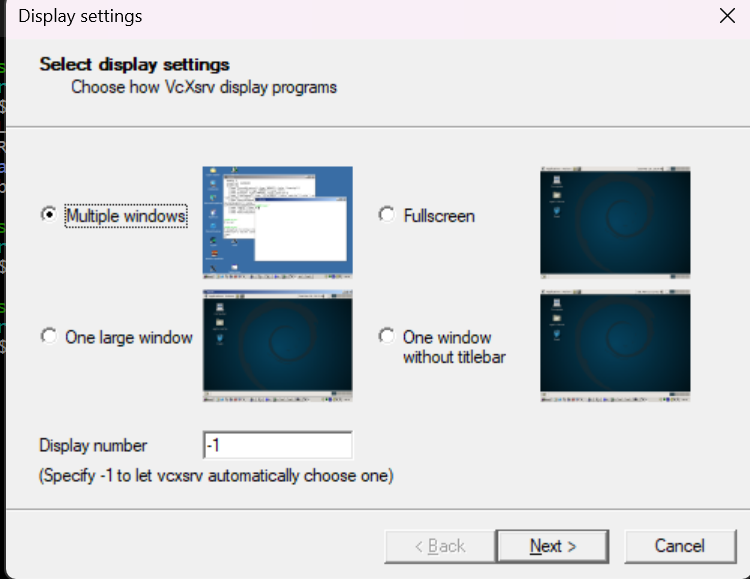
Choose Multiple windows and click on Next > and a new page will appear that goes through the Session Type.
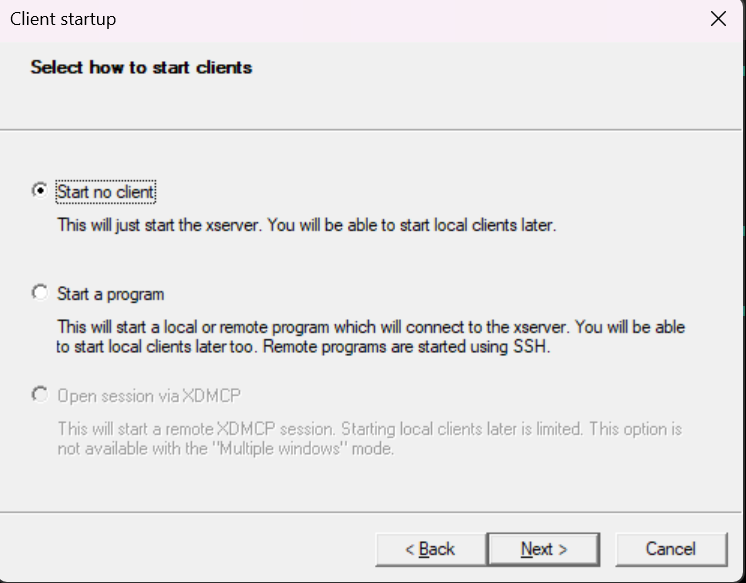
On the Session Type, choose start no client and click on Next, and you should be prompted to the Additional parameters section.
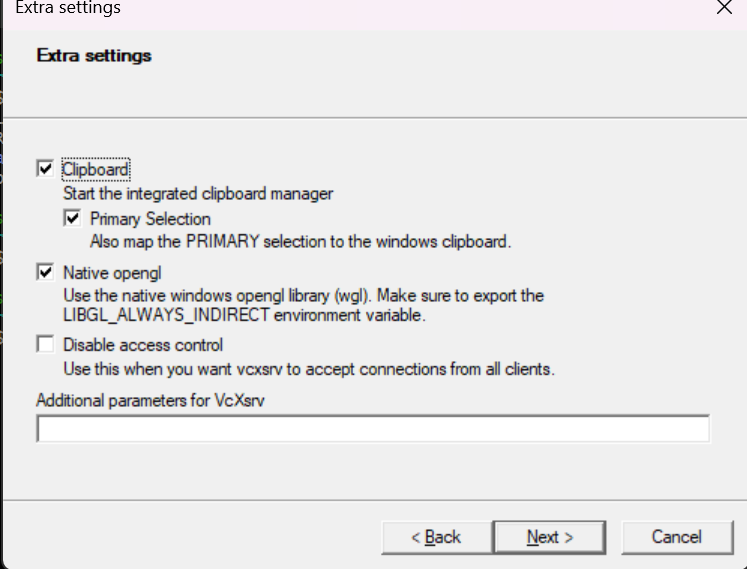
There, choose only the Clipboard option and press Next >, and that will move you to Finish Configuration.
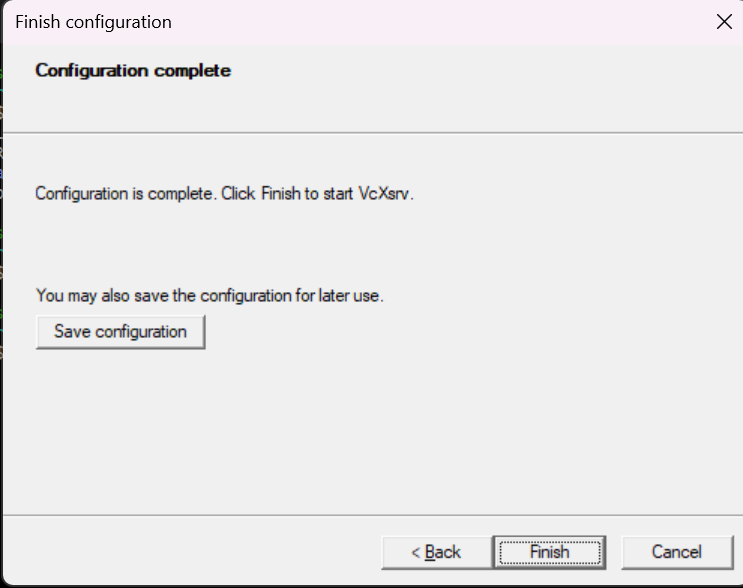
On that screen, you only need to click on Finish.
Configuring PuTTY for X11
If you haven't already set up PuTTY, download it here.
The first step is to open PuTTY and load a session. To do this, you should automatically be moved to the Session section once you run PuTTY.
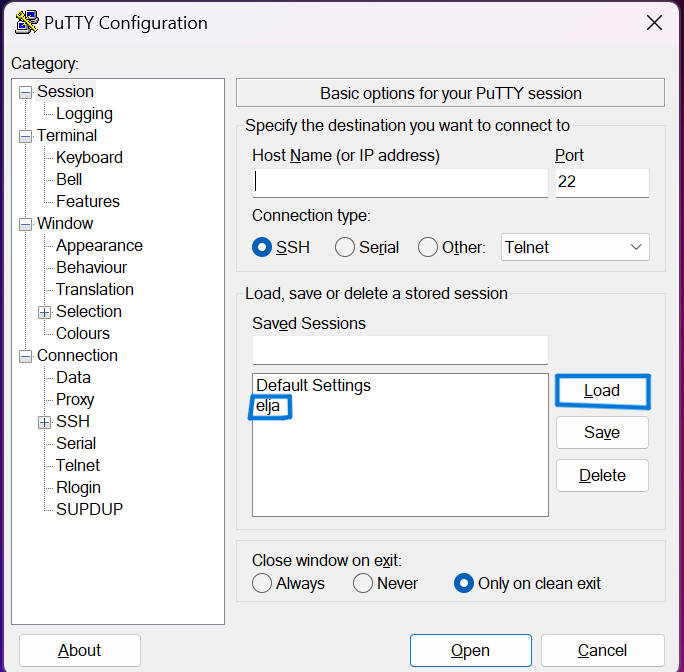
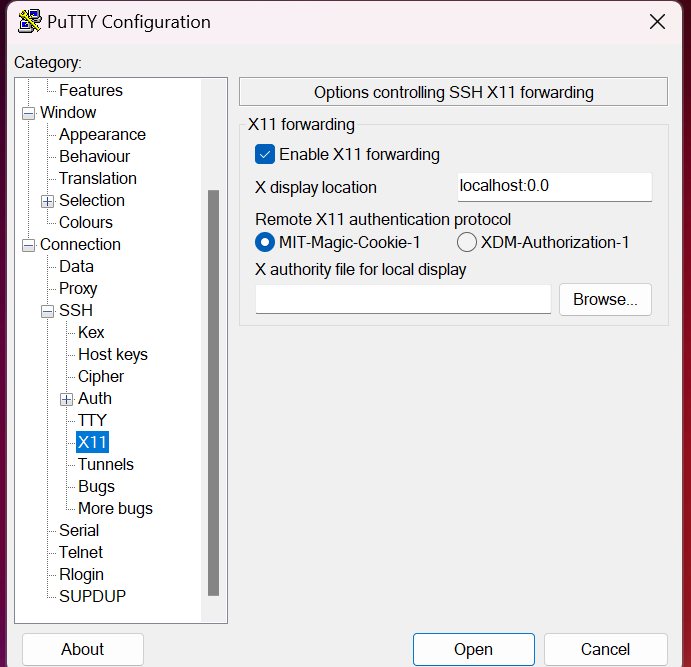
Go to Connection -> SSH -> X11 and choose Enable X11 Forwarding and set the X display location to localhost:0.0 as well as selecting MIT-Magic-Cookie-1 in Remote X11 authentication protocol. If you've done everything correctly, it should look something like this:
Check for Result
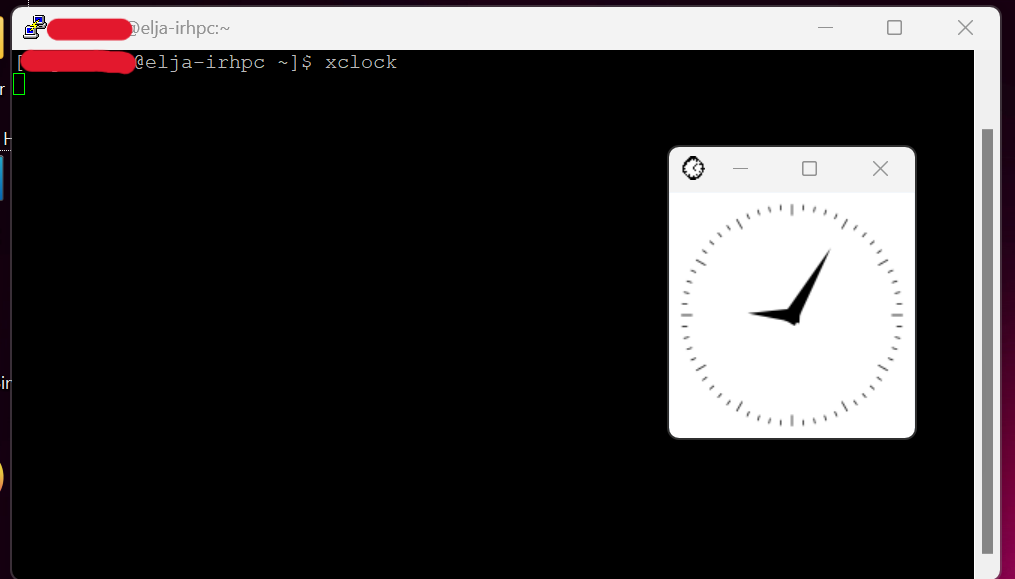
Once you've setup X11 and connected to elja the next step is to check whether it succeeded. To do this simply type in the command line on elja xclock. This command should make a clock appear on your screen, like the screenshot shows here below.