2.1 Connection to external data storage
IREIs cloud storage can be connected to data hosted on other services using the SSL/TSL connection to the cloud storage. Users who have large data on other servers can share it between partners via the cloud storage.
You can set up a connection between IREIs cloud storage and a database on another sever by following these steps:
-
First you need to go to the access settings, which can be done by clicking on your profile picture and then "settings".
-
On the left side of the website there should be text that says "external storage". you need to click on that button.
-
When you get to the "External Storage" page, the user needs to fill in a few columns.
a. Folder name: Name of the folder where the data will be stored on IREIs cloud storage, can be anything.
b. External Storage: Here is the setting for how the connection will be between the server and the cloud storage, it would be best to set uo an SFTP connection, or secure file transfer protocol.
c. Authentication: Here the user chooses a login option, in the picture you can see an RSA public key.
d. Confiugration: Contains numerous columns that can be filled in, they will be reviewed here.
i. Host: Here you need to write the name of the server that the user wants to connect to. For example, a user can write "elja.hi.is" or "ireigogn.hi.is"
ii. Root: Here you need to fill in the full location of the data on the server that the user wants to connect to.
iii. Login: Here You need to fill in the username on the server
iv. ssh-rsa...: is the public part of the ssh key that the person in question needs to send to the server's system administrator
Note! it is important to check whether authentication is infact set to "RSA public key" and not "RSA private key".
e. 1024: Here the user can choose the length of the key, it is recommended to update it to 4096 and then click on "generate keys". Then you need to copy the ssh key that was passed through in step iv.
f. In the end you'll need to click on the "✔️" button in order to complete the installation.
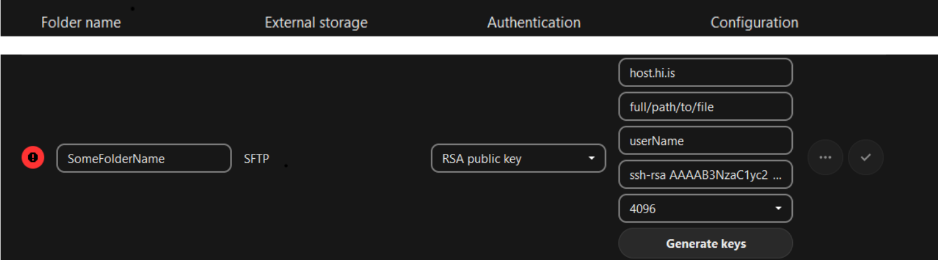
Figure 19. connect to an external data storage that will be named "SomeFolderName" and connected via SFTP where the person in question needs to connect to the external system with an ssh key
If the connection was successful, a green circle should appear containing "✔️" instead of the read circle seen on the left side of figure 19.
In order to share data from the external data store, you need to click on the "..." button located on the right side of figure 19.
In order to share data from the external data store, you need to click on the "..." button located on the right side of figure 19, and then check the "enable sharing" checkbox.
To confirm that the file is connected, you can navigate to the "Files" section of the website and a file that looks similar to figure 20 should appear.

Figure 20. Name of created Directory
This is where the data should be stored. It can e shared between users and synchronized with their computers.